Valentine's Sale - 20% OFF - Limited Time
Back to Home
How to Use Your LomuraOrb™
Get started in just a few simple steps
1
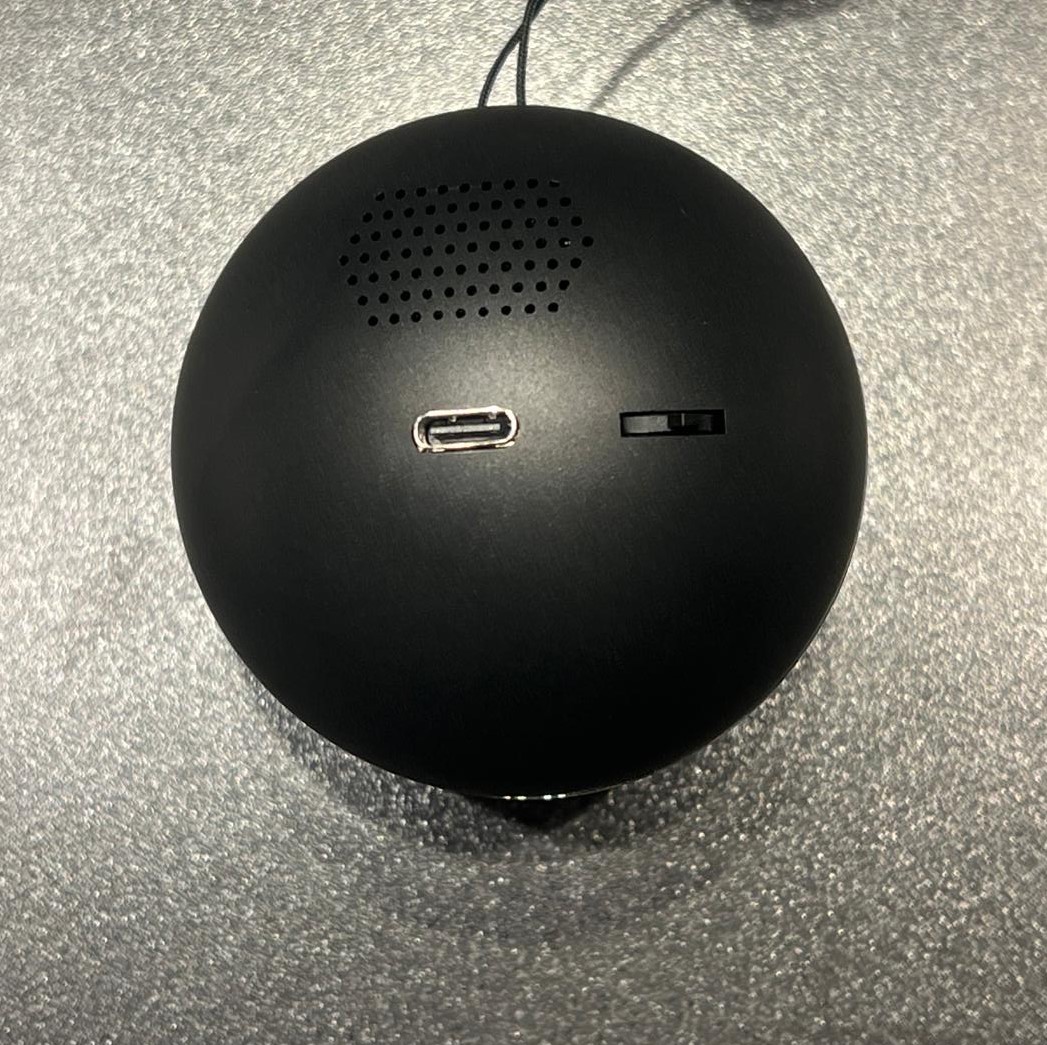
Button & USB-C
On the back of your LomuraOrb, you'll find the USB-C charging port and a button that controls the device.
Press & hold (5 sec): Turn the orb on or off
Slide left/right: Switch between uploaded media
2
Download the App
Download the iHanfo app from the App Store. This companion app lets you upload photos and videos to your orb.

3
Connect & Upload Media
Follow these steps to connect to your orb and upload your photos or videos:
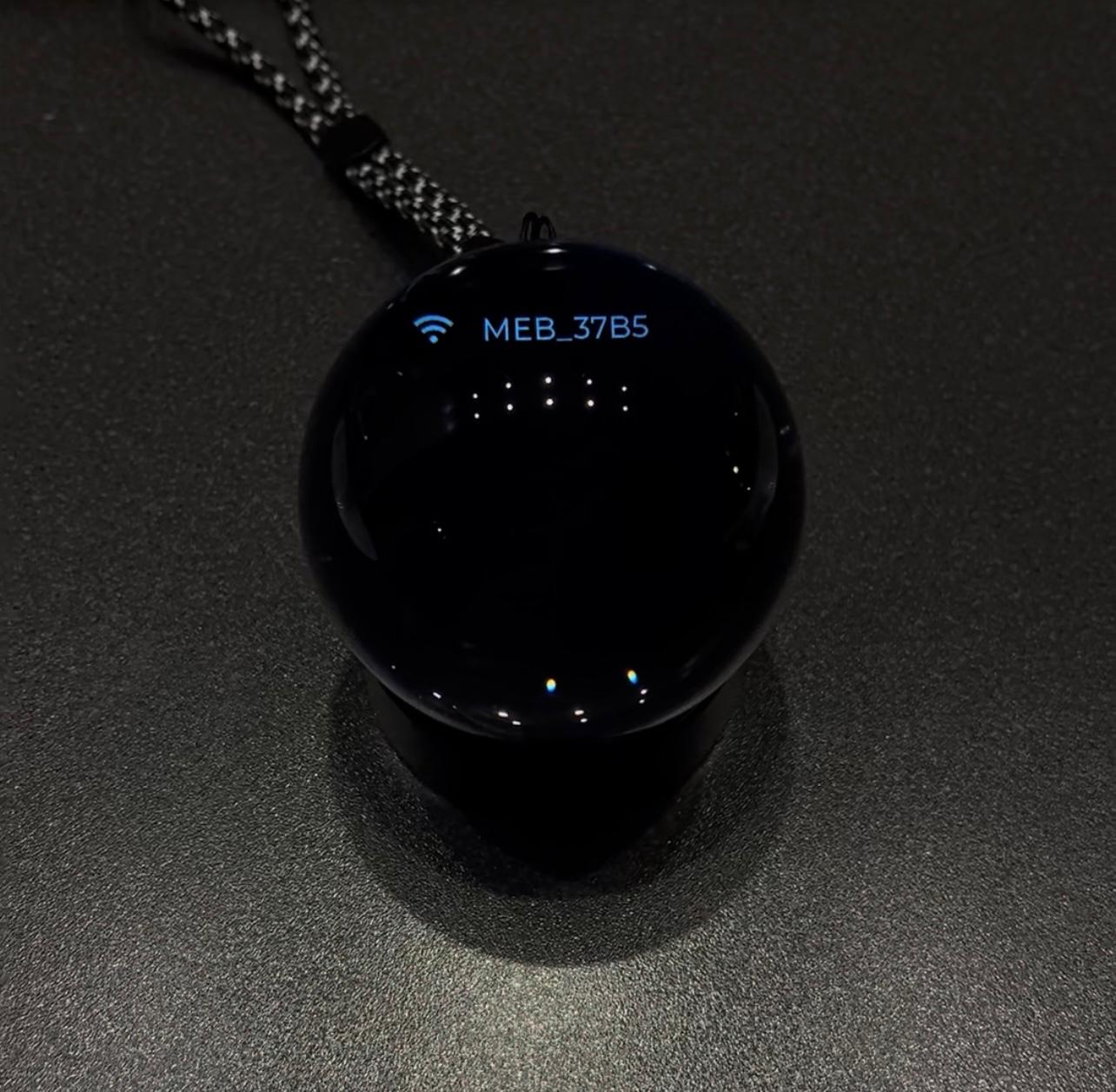
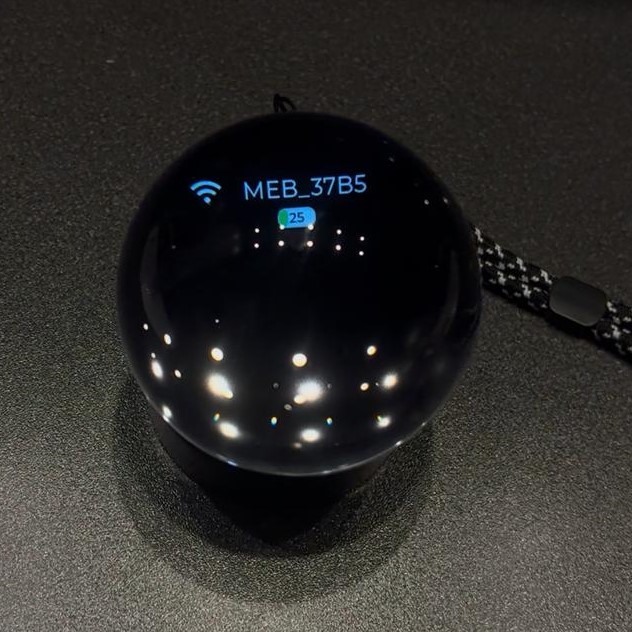
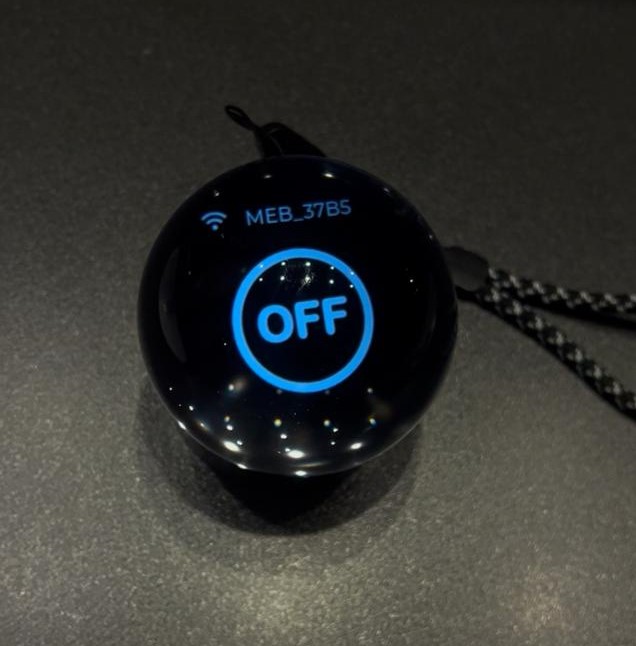
- Turn on the orb and wait until a WiFi icon with a hotspot name appears
- On your phone, go to WiFi settings and connect to the orb's hotspot
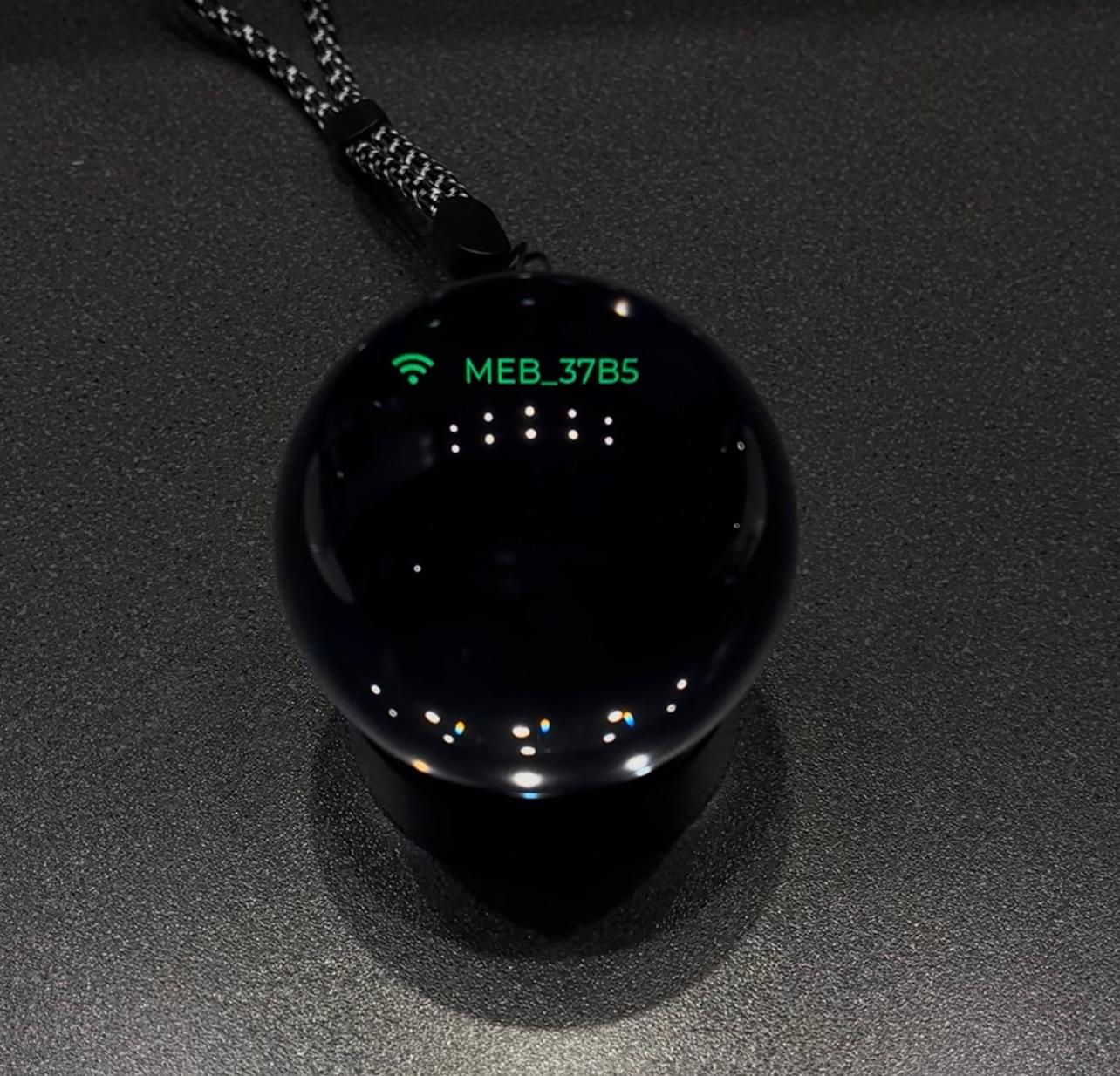
- When connected, the hotspot name will turn green
- While it's green, open the iHanfo app to upload media
- When done, disconnect from the hotspot in your phone's WiFi settings
- The text will disappear and your media will display
- Use the button to slide left/right to switch media